
Google Analytics can help you analyze your e-commerce traffic and customer behavior. Thankfully, BigCommerce provides a user-friendly approach for integrating GA.
Here's how you can add GA to your BigCommerce store, step by step. Let's dive in!
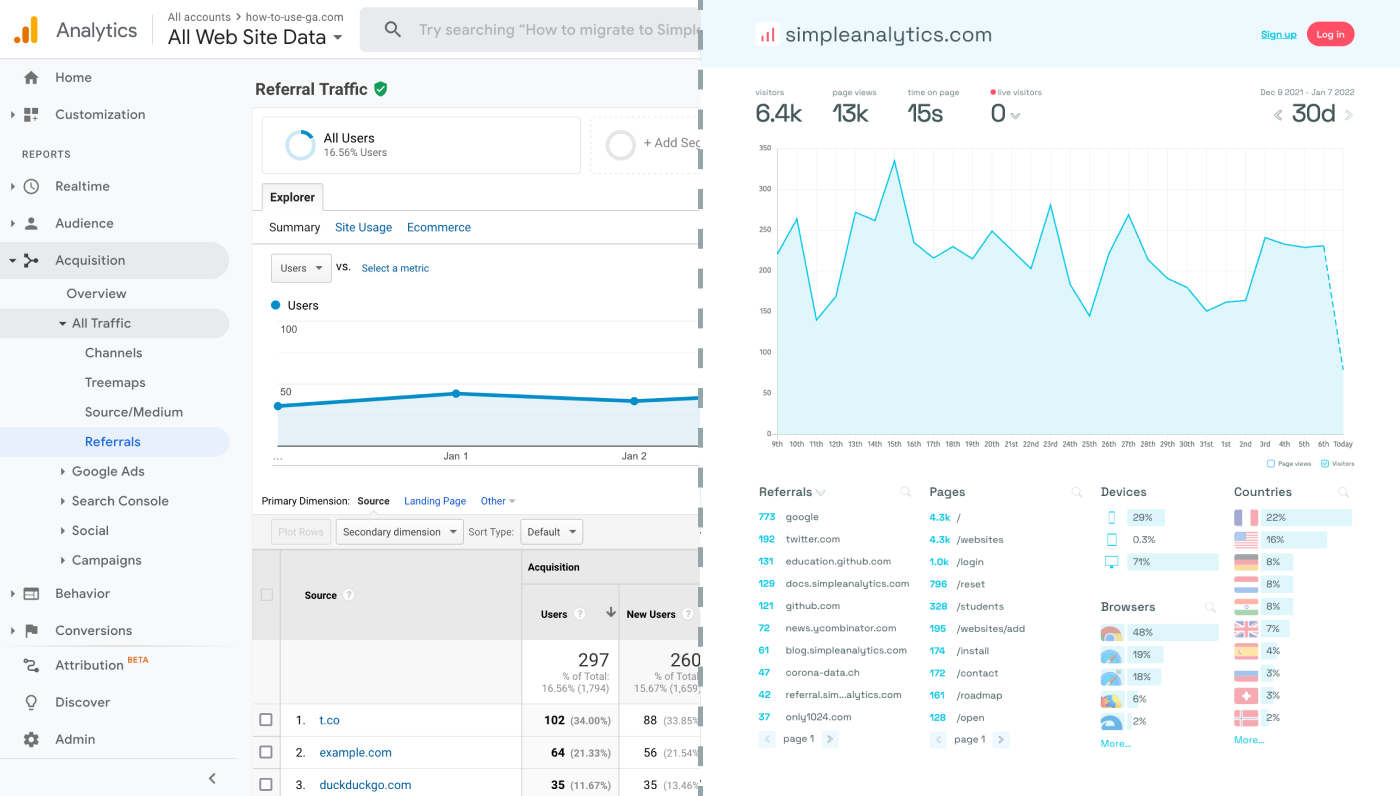
Before we dig in you need to know that Google Analytics is complex and a bit clunky. There are other options that give you the same insights in a slick and straightforward dashboard.
Simple Analytics is one of them. A privacy-friendly and simple analytics tool - just the insights you need in a straightforward dashboard. (And its also free yes).
All right, now let's get into answering your question!
Step-by-step integration
Set up a Google Analytics property
- Log into your GA account (or create one, if you haven't already).
- Create a GA property for your website.
- Inspect your property and note its Measurement ID. You will need this ID later.
Navigate to Advanced Settings
In your BigCommerce admin panel, go to ‘Store Setup’ and then select ‘Advanced Settings’.
Access Web Analytics Settings
Within ‘Advanced Settings’, find and click on the ‘Web Analytics’ tab.
Enable Google Analytics
In the ‘Web Analytics’ section:
- Check the Google Analytics Box: You’ll see several analytics options. Check the box next to ‘Google Analytics’.
- Save Your Settings: Click on ‘Save’ to apply your changes.
Enter Your GA Measurement ID
Now that Google Analytics is enabled:
- Go to the Google Analytics Section: Navigate to the newly available Google Analytics section.
- Input Your Measurement ID: Paste your GA Measurement ID in the appropriate field.
- Configure Additional Settings (if needed): BigCommerce allows you to configure additional settings for GA, like e-commerce tracking.
- Save Your Changes: After entering your Measurement ID and configuring additional settings, save your changes.
Verify the Integration
To confirm that GA is correctly tracking your store, check the ‘Realtime’ section in your GA dashboard. You should see real-time data if the integration is successful. This might take a few hours to start showing.
(Optional) Create New Properties
To track multiple websites, create more GA properties and use the corresponding Measurement IDs. This prevents GA from conflating the data.
Final Thoughts
Adding Google Analytics to your e-commerce website can give you great insights. However, ask yourself: is Google Analytics the right tool for you?
GA is an overpowered solution for straightforward analytics. If you're looking for a simple and intuitive dashboard with the insights you need, there are better alternatives.
If this resonates with you, feel free to give Simple Analytics a spin. You just need to add the script to your app and off you go. This takes about one minute- and there is a free version as well!
Enjoy!