
Integrating Google Analytics with Linktree can show you how visitors interact with your Linktree page, which links they click on most, where your traffic comes from, and much more. This is valuable insight whether you're a content creator, marketer, or business owner.
Integrating Google Analytic isn't terribly complicated, either. Here is how to do it, step by step.
Let's dive in!
- Set Up Google Analytics 4 for Your Linktree
- Integrate Google Analytics with Your Linktree
- Final Thoughts
Before we dig in you need to know that Google Analytics is complex and a bit clunky. There are other options that give you the same insights in a slick and straightforward dashboard.
Simple Analytics is one of them. A privacy-friendly and simple analytics tool - just the insights you need in a straightforward dashboard. (And its also free yes).
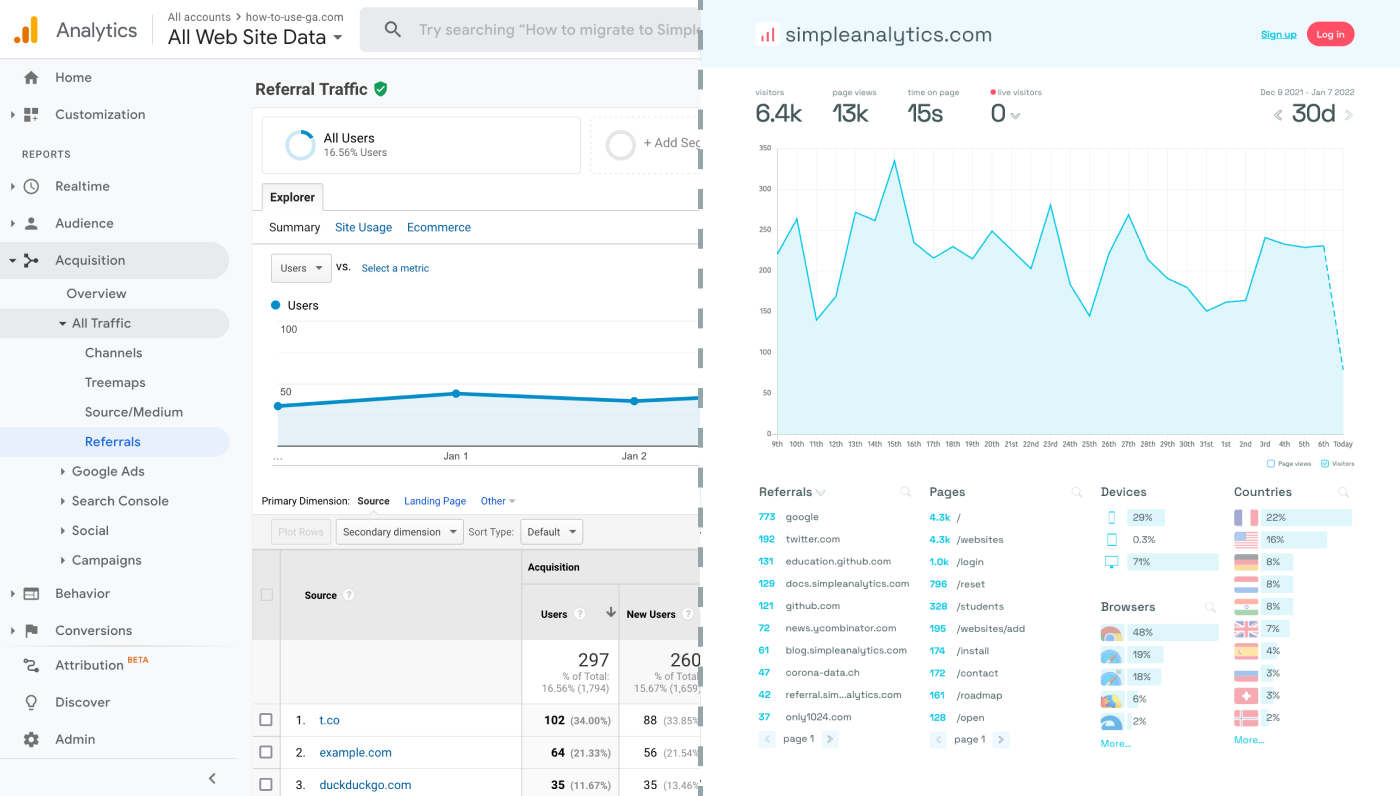
All right, now let's get into answering your question!
Set Up Google Analytics 4 for Your Linktree
Before integrating Google Analytics with your Linktree, you'll need to have a GA4 property set up. GA4 is the latest iteration of Google Analytics, offering more detailed insights and a user-friendly interface. Here's how to set it up:
- Visit the Google Analytics website and log in or sign up for a Google account if you don't have one.
- Follow the steps to create a new property, selecting "Web" as your platform type.
- Fill out the information about your website. Once completed, you'll be given a Measurement ID (starting with "G-"). This ID is essential for the integration process with Linktree.
Integrate Google Analytics with Your Linktree
Integrating GA with your Linktree allows you to track visitor behavior on your Linktree page. Here’s how to connect them:
- Log into your Linktree admin dashboard.
- Navigate to the Settings tab and look for the Analytics section.
- In the Analytics section, you'll find a field for your Google Analytics ID. Enter your Measurement ID (the "G-" ID) here.
- Save your changes. Your Linktree is now connected to Google Analytics, and you'll start to see data flowing into your GA account.
To track multiple Linktree pages, create new properties and use a different Measurement ID for every page. This allows GA to track each page individually.
Final Thoughts
Adding Google Analytics to your Linktree page can give you great insights. However, ask yourself: is Google Analytics the right tool for you?
GA is an overpowered solution for straightforward analytics. If you're looking for a simple and intuitive dashboard with the insights you need, there are better alternatives.
If this resonates with you, feel free to give Simple Analytics a spin. You just need to add the script to your app and off you go. This takes about one minute- and there is a free version as well!
Enjoy!