
Integrating Google Analytics with your React application can help you optimize your app and understand user behavior. Here is how to do it, step by step.
Let's dive in!
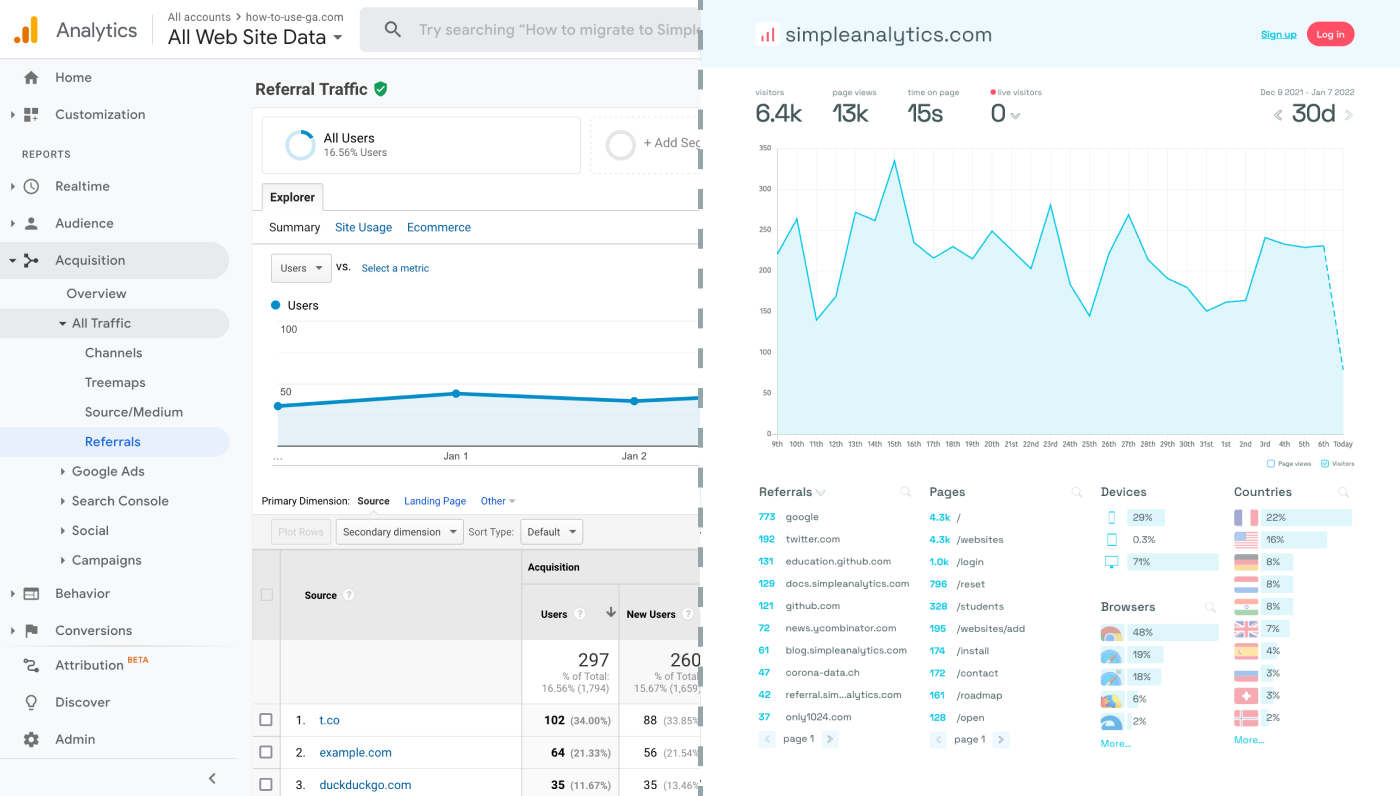
Before we dig in you need to know that Google Analytics is complex and a bit clunky. There are other options that give you the same insights in a slick and straightforward dashboard.
Simple Analytics is one of them. A privacy-friendly and simple analytics tool - just the insights you need in a straightforward dashboard. (And its also free, yes).
All right, now let's get into answering your question!
Integrating Google Analytics
Set up Google Analytics
- Log into your GA profile (or create one, if you haven't already)
- Create a GA property for your app.
- Inspect the property and note down your Measurement ID. You will need it later.
Install Google Analytics in Your React App
Install GA Library: Use npm or yarn to install a GA library that supports GA4. One popular option is
react-ga4. Run the command:npm install react-ga4or
yarn add react-ga4Initialize GA: In your React application, typically in the main entry file like
App.js, import and initialize the GA library with your Measurement ID:import ReactGA from 'react-ga4'; ReactGA.initialize('Your-Measurement-ID');
Track Pageviews
To track pageviews, you can use the useEffect hook in your React components. For example, in your App.js, add:
   useEffect(() => {
     ReactGA.send({ hitType: "pageview", page: window.location.pathname });
   }, []);
Track events:
You can use the 'useEffect' hook to track specific user actions like as well. For instance, you can track button clicks by adding the following code:
j
   const handleButtonClick = () => {
     ReactGA.event({
       category: 'User',
       action: 'Clicked a button'
     });
   };
Test Your Integration
To ensure everything is set up correctly:
- Use Real-Time Reports: Check real-time reports in your Google Analytics dashboard to see if pageviews and events are being recorded.
- Debugging: Utilize the 'DebugView' in GA4 for troubleshooting and verifying event tracking.
(Optional) Create New Properties
To track multiple apps, create more GA properties and use the corresponding Measurement IDs. This prevents GA from conflating the data.
Final Thoughts
Adding Google Analytics to your app can give you great insights. However, ask yourself: is Google Analytics the right tool for you?
GA is an overpowered solution for straightforward analytics. If you're looking for a simple and intuitive dashboard with the insights you need, there are better alternatives.
If this resonates with you, feel free to give Simple Analytics a spin. You just need to add the script to your app and off you go. This takes about one minute- and there is a free version as well!
Enjoy!