
While Drip offers its own analytics, integrating Google Analytics can provide deeper insight into your campaign's performance. This blog post will guide you through the process of integrating Google Analytics with Drip, step by step.
Let's dive in!
- Set Up Google Analytics
- Create UTM-Tagged URLs for Your Email Campaigns
- Add UTM-Tagged URLs to Your Drip Emails
- Final Thoughts
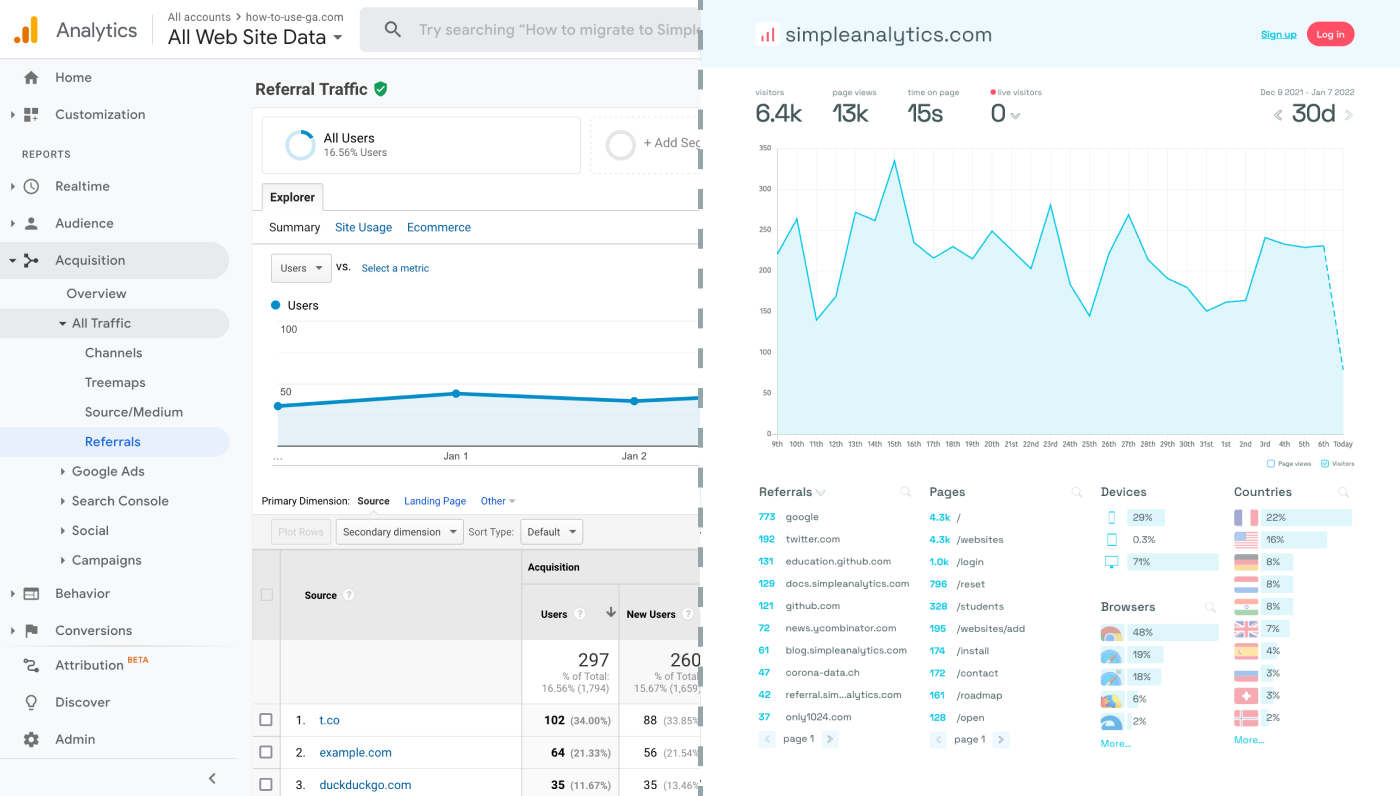
Before we dig in you need to know that Google Analytics is complex and a bit clunky. There are other options that give you the same insights in a slick and straightforward dashboard.
Simple Analytics is one of them. A privacy-friendly and simple analytics tool - just the insights you need in a straightforward dashboard. (And its also free yes).
All right, now let's get into answering your question!
Set Up Google Analytics
Before integrating GA with Drip, ensure you have a Google Analytics account set up for your website. If you're new to GA4, here's how to get started:
- Create a Google Analytics Account: Visit the Google Analytics website and sign in with your Google account. If you don't have an account, you'll need to create one.
- Set Up a New Property: Follow the on-screen instructions to create a new GA4 property, selecting "Web" as your platform.
- Note Your Measurement ID: After setting up your property, Google will provide you with a Measurement ID (formatted as "G-XXXXXXXXXX"). Keep this handy for the integration process.
Create UTM-Tagged URLs for Your Email Campaigns
To track the performance of your Drip campaigns in Google Analytics, you’ll need to create UTM-tagged URLs for each link within your emails. Here’s a simple way to do this:
Use a UTM Builder: Utilize an online UTM builder, like Google’s Campaign URL Builder, to generate your URLs. You'll need to input:
- Website URL: The webpage your email will link to.
- Campaign Source: This could be "drip" to denote the source of traffic.
- Campaign Medium: Use "email" to specify the medium.
- Campaign Name: A specific name for your campaign to differentiate it in GA.
Generate UTM-Tagged URLs: After filling in the details, the tool will generate a URL with your UTM parameters. Use these URLs for links in your Drip emails.
Add UTM-Tagged URLs to Your Drip Emails
When creating or editing an email within Drip:
- Insert Links: Use the UTM-tagged URLs you’ve created as the links in your email content. This ensures that when recipients click on these links, Google Analytics can track their source, medium, and campaign name.
- Consistency is Key: Be consistent with your UTM parameter naming conventions across campaigns for accurate tracking and comparison in GA. We suggest sticking to lowercase characters to avoid case-sensitivity issues.
Final Thoughts
Adding Google Analytics to your project can give you great insights. However, ask yourself: is Google Analytics the right tool for you?
GA is an overpowered solution for straightforward analytics. If you're looking for a simple and intuitive dashboard with the insights you need, there are better alternatives.
If this resonates with you, feel free to give Simple Analytics a spin. You just need to add the script to your app and off you go. This takes about one minute- and there is a free version as well!
Enjoy!