
Integrating Google Analytics with your JotForm forms can provide deeper insights into how users interact with your forms. In this blog post, we'll guide you through the process of adding Google Analytics to your JotForm forms, enabling you to unlock actionable analytics data.
Let's dive in!
- Create a Google Analytics 4 Property
- Add Google Analytics to Your JotForm Form
- Verify Integration
- Final Thoughts
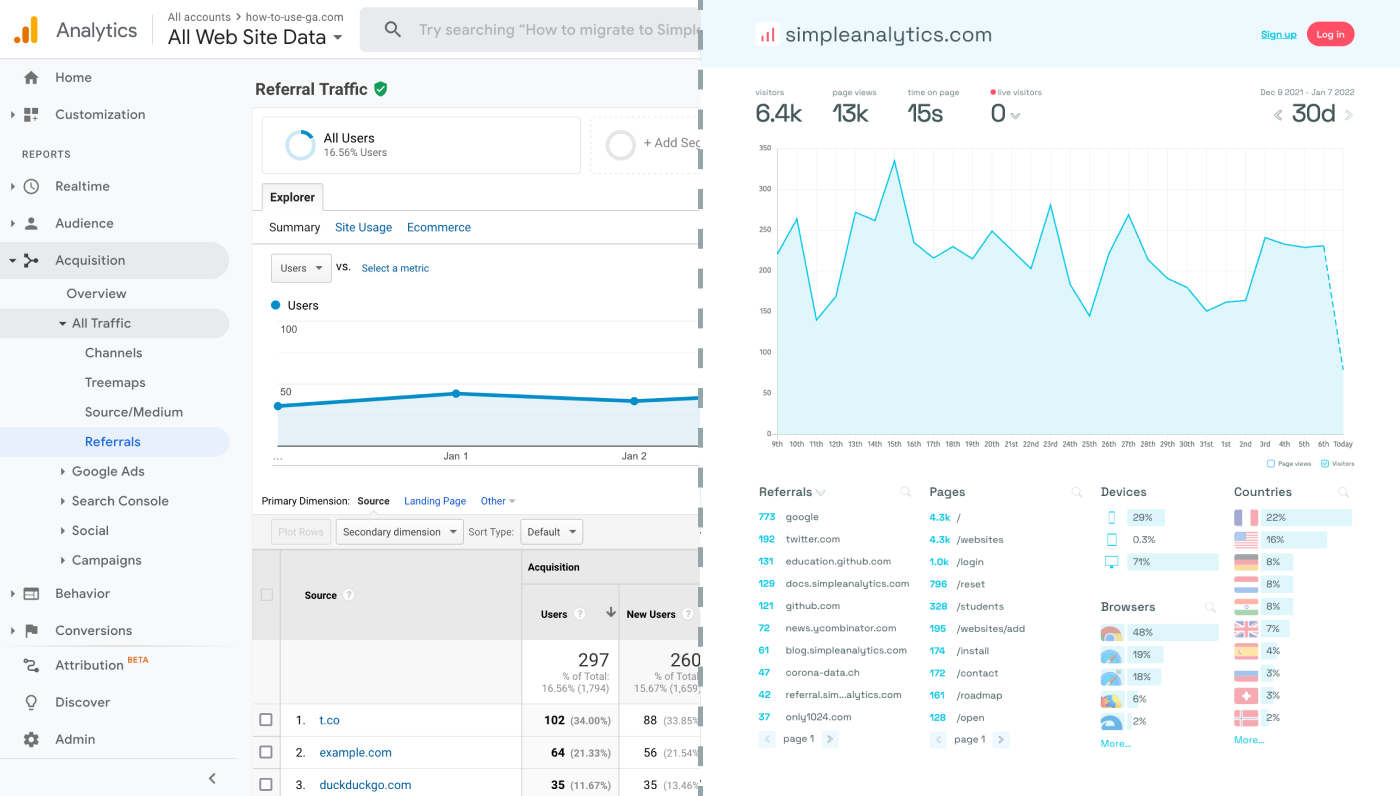
Before we dig in you need to know that Google Analytics is complex and a bit clunky. There are other options that give you the same insights in a slick and straightforward dashboard.
Simple Analytics is one of them. A privacy-friendly and simple analytics tool - just the insights you need in a straightforward dashboard. (And its also free yes).
All right, now let's get into answering your question!
Create a Google Analytics 4 Property
Before integrating Google Analytics with your JotForm, ensure you have a Google Analytics 4 (GA4) property set up for your website. GA4 offers a more flexible, event-driven model for tracking compared to its predecessor, Universal Analytics. Here's how to get started:
- Visit the Google Analytics website and sign in or create a Google account if you don't already have one.
- Follow the on-screen instructions to create a new property. Ensure you select "Web" as your platform type.
- Fill in your website details. After completing the setup, Google will provide you with a Measurement ID (formatted as "G-XXXXXXX"). Note this ID, as you will need it later.
Add Google Analytics to Your JotForm Form
Integrating GA with your JotForm form requires embedding a custom HTML element that includes the GA tracking code. Follow these steps:
- Access Your Form: Log in to your JotForm account and select the form you want to track.
- Add a Widget: Navigate to the "Elements" section on the left-hand side of the form builder. Look for the "Widgets" tab and search for the "HTML" widget.
- Embed the GA Tracking Code: Drag the HTML widget to your form where you'd like the Google Analytics code to be placed (placing it at the end of the form is a common practice). Click on the widget to edit it, and paste your Google Analytics tracking code in the provided HTML input area.
The GA tracking code snippet looks something like this:
<!-- Global site tag (gtag.js) - Google Analytics -->
<script async src="https://www.googletagmanager.com/gtag/js?id=G-XXXXXXX"></script>
<script>
  window.dataLayer = window.dataLayer || [];
  function gtag(){dataLayer.push(arguments);}
  gtag('js', new Date());

  gtag('config', 'G-XXXXXXX');
</script>
Replace 'G-XXXXXXX' with your actual Measurement ID.
- Save Your Form: After embedding the tracking code, save your form. Google Analytics is now integrated with your JotForm form.
Verify Integration
To ensure that Google Analytics is properly tracking interactions with your form:
- Open your form in a web browser and interact with it by filling in some fields and navigating through it.
- Check your Google Analytics account, specifically the Realtime report, to see if your interactions are being captured. This confirms that the integration is successful.
Final Thoughts
Adding Google Analytics to your form can give you great insights. However, ask yourself: is Google Analytics the right tool for you?
GA is an overpowered solution for straightforward analytics. If you're looking for a simple and intuitive dashboard with the insights you need, there are better alternatives.
If this resonates with you, feel free to give Simple Analytics a spin. You just need to add the script to your app and off you go. This takes about one minute- and there is a free version as well!
Enjoy!