
Google Analytics helps you track visitor behavior and measure your website’s performance. If you're using Lovable, an AI-powered developer tool, you need to add the Google Analytics tracking code manually to track your site's traffic. There is no direct integration.
Let's dive in!
- Create a Google Analytics account
- Get your Google Analytics tracking ID
- Add tracking code to Lovable
- Verify your setup
- Final Thoughts
Before we dig in I want to show you something. I promise it's worth it...
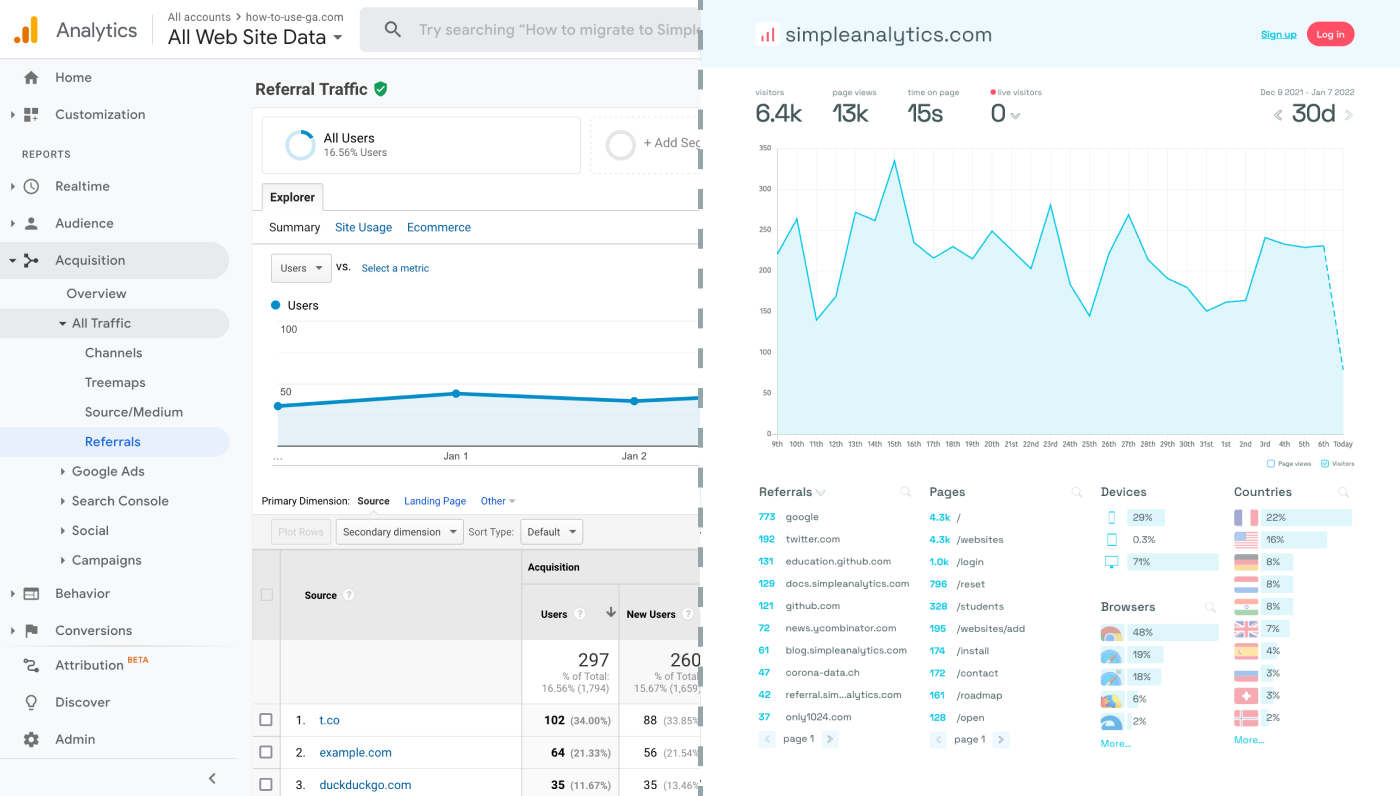
Google Analytics is great, but also complex and a bit clunky. If you just want a straightforward dashboard with the insights you need, GA is not a great place to start. Additionally, Google doesn't care about privacy and GA requires an annoying cookie banner.
That's why we built Simple Analytics, a privacy-friendly and simple analytics tool - no personal data, no cookies, just the insights you need in a straightforward dashboard.
Here is how it looks vs GA. Feel free to check our live analytics to get an idea for your project. (It is free btw)
All right, enough about us. Now let's get into answering your question!
Create a Google Analytics account
If you don’t have a Google Analytics account yet, go to Google Analytics and sign up. Select “Web” as the platform and follow the setup instructions.
Get your Google Analytics tracking ID
Once your account is set up:
- Navigate to Admin > Data Streams.
- Select your website property.
- Copy the Measurement ID (looks like
G-XXXXXXXXXX).
Add tracking code to Lovable
Add the script to the website’s <head> section
- Find a way to access your site’s Custom Code or HTML Header section in Lovable.
- Paste the following Google Analytics tracking code inside the
<head>section:
<script async src="https://www.googletagmanager.com/gtag/js?id=G-XXXXXXXXXX"></script>
<script>
  window.dataLayer = window.dataLayer || [];
  function gtag(){dataLayer.push(arguments);}
  gtag('js', new Date());
  gtag('config', 'G-XXXXXXXXXX');
</script>- Replace
G-XXXXXXXXXXwith your actual measurement ID.
Verify your setup
- Open Google Analytics.
- Go to Reports > Real-time and check if your visits are being tracked.
Final Thoughts
Adding Google Analytics to Lovable should be straightforward if you can edit the website’s <head> section.
If you're for something more simple and privacy-friendly, check out Simple Analytics. We offer a lightweight and user-friendly tracking solution without compromising user privacy.